
Table of contents
- Common Reasons for Connection Failures
- Step-by-Step Troubleshooting for iOS and Android
- 1. Switch Your VPN Protocol
- 2. Enable Alternative Routing
- 3. Change the Server Location
- 4. Update or Reinstall the App
- Troubleshooting Differences: iOS vs. Android
- Community Insights and Best Practices
- FAQ
- Why does my app get stuck on "Assigning IP"?
- Can battery saver mode stop my VPN from connecting?
- How do I know if my Wi-Fi is blocking the connection?
- Does reinstalling the app delete my account?
If you find proton vpn not connecting on your mobile device, the issue is typically caused by unstable internet connections, overloaded servers, restrictive network firewalls, or VPN protocol conflicts. Fortunately, resolving this issue is straightforward. By adjusting your protocol settings, switching server locations, or updating the application, you can quickly restore your secure connection on both iOS and Android platforms.
Common Reasons for Connection Failures
Understanding the root cause is the first step in effective proton vpn troubleshooting. Here are the most frequent culprits affecting mobile users:
- Network or ISP Blocking: Public Wi-Fi networks (like those at airports or cafes) and certain Internet Service Providers often block standard VPN ports to restrict encrypted traffic.
- Overloaded Servers: If you are using the proton vpn free tier, the available servers might experience high traffic, leading to connection timeouts.
- Protocol Incompatibility: The default VPN protocol might not perform well on your specific cellular network (4G/5G).
- Outdated Application: Running an older version of the app can cause compatibility issues with modern operating systems.
Step-by-Step Troubleshooting for iOS and Android
1. Switch Your VPN Protocol
Different protocols use different ports. If one is blocked, another might work perfectly. Proton VPN offers Smart Protocol technology, but manually changing it can force a successful connection.
- Open the app and navigate to Settings.
- Find the Connection or Protocol section.
- Switch from Smart to WireGuard or OpenVPN (TCP). TCP is highly reliable on restrictive networks.
2. Enable Alternative Routing
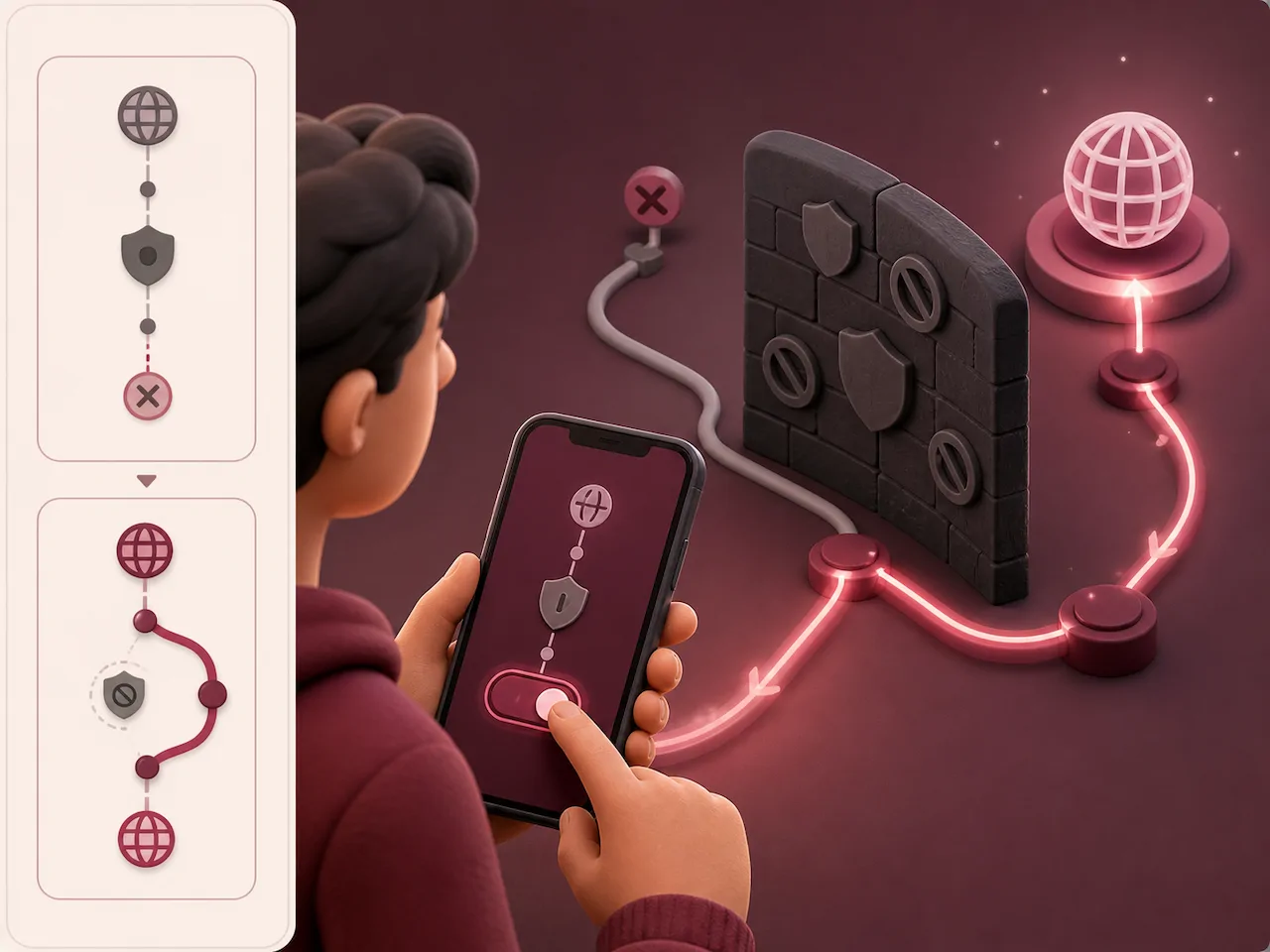
According to the official Proton VPN support center and various tech communities like Reddit, enabling Alternative Routing is a highly effective way to bypass anti-VPN firewalls. This feature routes your connection through third-party networks to evade network blocks seamlessly.
3. Change the Server Location
If a specific server is down for maintenance or overloaded, simply disconnecting and choosing a different city or country can instantly fix the problem. Premium users have access to thousands of servers, while free users should try switching to a different free location.
4. Update or Reinstall the App
Corrupted app data can prevent successful connections. Ensure you have the latest protonvpn download from the official App Store or Google Play Store to maintain optimal performance.
- For Android: Go to Settings > Apps > Proton VPN > Storage, then tap Clear Cache.
- For iOS: iOS does not allow clearing cache directly. You will need to uninstall and reinstall the app.
Troubleshooting Differences: iOS vs. Android
While the core solutions are similar, the operating systems handle VPN profiles differently. Here is a quick comparison:
| Troubleshooting Action | Android Devices | iOS Devices (iPhone/iPad) |
|---|---|---|
| Clear App Cache | Available via system settings. | Not available; requires app reinstallation. |
| Always-on VPN Feature | Native Android feature; can sometimes block connections if misconfigured. | Managed via the Proton VPN app settings. |
| Battery Saver Interference | Aggressive battery optimization may kill the VPN background process. | Low Power Mode rarely disconnects the VPN directly. |
Community Insights and Best Practices
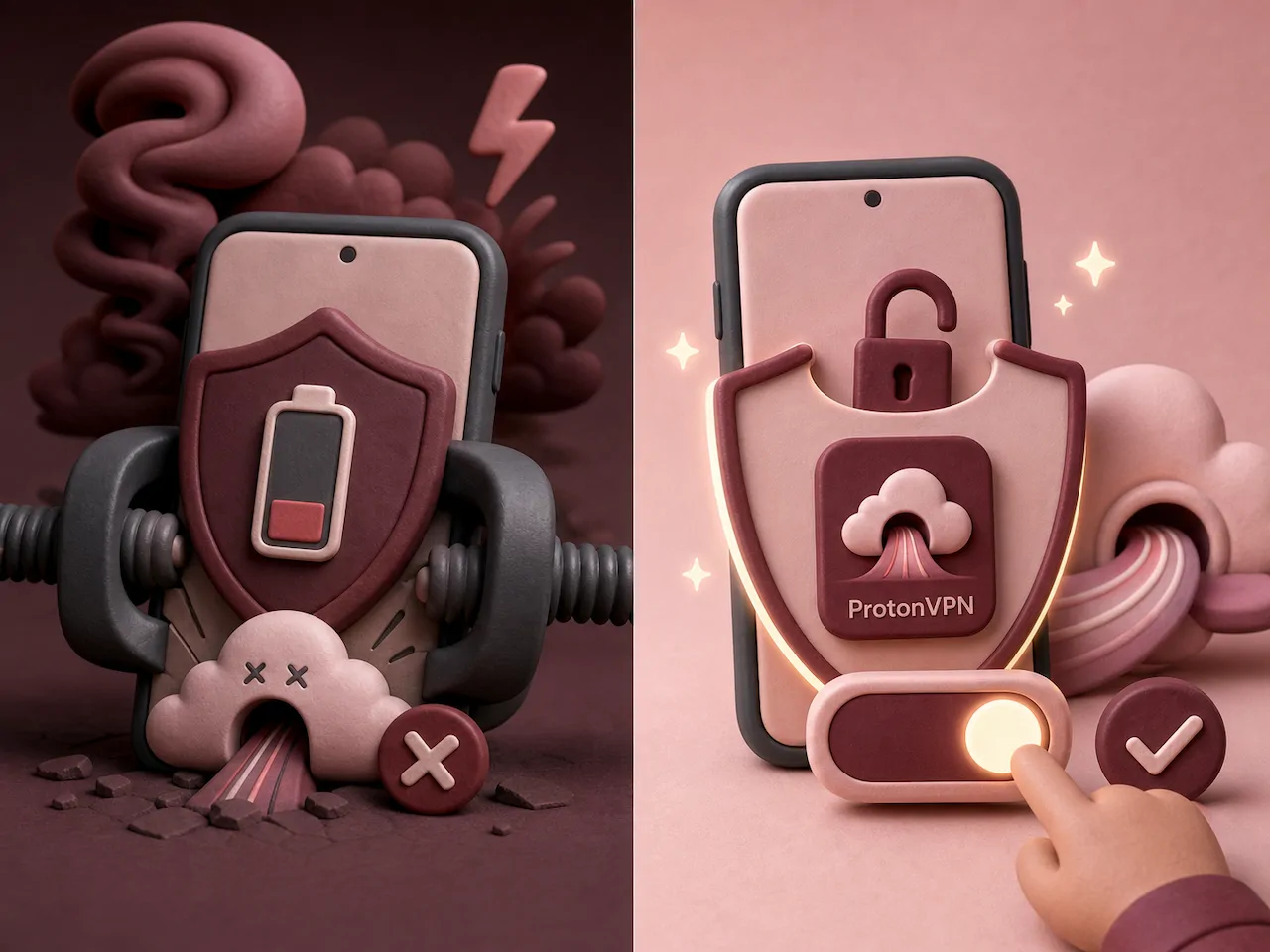
Many users on forums like Reddit and tech groups point out that aggressive battery-saving modes on Android devices (especially on brands like Samsung and Xiaomi) frequently terminate background VPN processes. To prevent this, always exempt the VPN app from battery optimization settings. Additionally, if you are traveling to countries with strict internet censorship, ensure you have the latest app updates and server lists downloaded before you arrive.
FAQ
Why does my app get stuck on "Assigning IP"?
This usually happens when the server is struggling to allocate an IP address due to high load or a poor local network signal. Disconnecting and connecting to a different server is the quickest fix.
Can battery saver mode stop my VPN from connecting?
Yes, especially on Android devices. Battery optimization features can restrict background data usage, preventing the VPN from establishing or maintaining a connection. Whitelist the app in your battery settings.
How do I know if my Wi-Fi is blocking the connection?
If the VPN connects perfectly on your cellular data (4G/5G) but fails on a specific Wi-Fi network, the Wi-Fi administrator has likely blocked VPN traffic. Switching your protocol to OpenVPN (TCP) or enabling Alternative Routing usually bypasses this.
Does reinstalling the app delete my account?
No. Reinstalling only removes the local app data and configuration files on your device. Your account details and subscription remain safe on Proton's servers. You will just need to log back in after reinstalling.